
How it was made · · 25 min read
How to write a game's whole UI from scratch in LÖVE
LÖVE gives you a window and a draw call, and nothing else. Here's the design behind every menu in Vaporware EX, with working code for each piece, so you can build your own: windows, input, gamepad navigation, buttons that feel good to press, and text that talks.
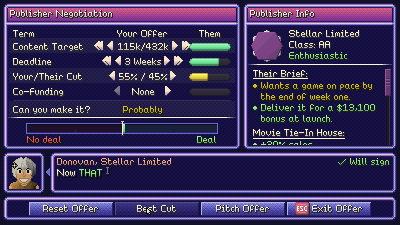
When I set out to make Vaporware EX, I wanted to make a game that felt like an operating system, differentiating from the top-down standard of game dev sims that have you looking down on the office, and instead having you, the player, sat at a workstation. Naturally, this would mean that the game would be almost entirely composed of UI. And this meant that I would need to invest a significant amount of time engineering a UI architecture.
UI is kind of an inside joke in the LÖVE community. Although there are around a dozen open-source UI libraries, there is no standard "plug this in and use it and all will be well" solution, and the framework itself offers no built-in UI module either. As a result, one of the most commonly asked questions a beginner to the framework will ask is "how do I do UI?" Although solutions do exist, I wanted to try my hand at rolling my own for this game, to maximize creative control and reduce the likelihood of running into limitations that might compromise my game's direction, and that is what this post is about.
For Vaporware EX, the UI library is entirely rolled out in-house. In this post, I'm gonna lay out the design, the process of developing it, and the issues I encountered along the way. In each section, I will be outlining some code snippets that when combined will give you a small UI you can run with all the core features that Vaporware's UI system managed to achieve. Around 800 lines in all. The one in the game is a lot bigger, but is more breadth than depth (more components, more windows). With the info in this post, you'll have the tools to recreate Vaporware's UI system, more or less.
The shape of it#
The six principal pieces of Vaporware's UI are the following, and they inform the structure of this post:
- Upscaling from a very small native resolution to meet the player's window resolution
- Event-based communication between everything, that can be used up
- A single source of input wherein every input LÖVE hears is dispatched from one place, transformed to the game's native res, along with the device it originates from
- A stack of windows to organize the state of everything, with the window at the top having focus
- One thing is selected at a time, and a press acts on whatever that is
- Feel, applied by motions and sounds
The provided samples are plain Lua with no libraries, written for LÖVE 11.5 and up. Each is a module, glued together with a main.lua at the end.
Upscaling from a very small native resolution#
Vaporware EX as a whole is rendered at 400x225, onto a canvas with nearest-neighbor filtering, scaled up to match the window's actual resolution at the end of the draw. It's 16:9, so if it doesn't fit nicely, the game letterboxes to deal with the difference, so the pixels aren't stretched into weird rectangles.
This is a double-edged sword. On the one hand, it's great because it means the UI only ever scales up, and never down. This means that I could use actual pixels as the source of truth for position and size data, render to the 400x225 canvas, and scale up the canvas. The UI fundamentally has no interest or requirement to know what resolution the game is rendering at.
On the other hand, it's a brutally small amount of real estate, and a lot of work has been invested into making the most of the size, making efficient use of space, and ensuring that things like text fit correctly without overflowing or getting cut off.
You can implement this kind of rendering solution with the following snippet:
-- screen.lua: everything is drawn at 400x225, then scaled up to the window
local Screen = { width = 400, height = 225 }

function Screen:Load()
    love.graphics.setDefaultFilter("nearest", "nearest")
    love.graphics.setLineStyle("rough")
    self.canvas = love.graphics.newCanvas(self.width, self.height)
    self:Resize(love.graphics.getDimensions())
end

-- the biggest whole-number scale that fits, centered, with bars around it
function Screen:Resize(windowWidth, windowHeight)
    local fit = math.min(windowWidth / self.width, windowHeight / self.height)
    self.scale = math.max(1, math.floor(fit))
    self.offsetX = math.floor((windowWidth - self.width * self.scale) / 2)
    self.offsetY = math.floor((windowHeight - self.height * self.scale) / 2)
end

-- window pixels to game pixels
function Screen:ToGame(windowX, windowY)
    return (windowX - self.offsetX) / self.scale, (windowY - self.offsetY) / self.scale
end

function Screen:Begin()
    love.graphics.setCanvas(self.canvas)
    love.graphics.clear(0.11, 0.04, 0.16, 1)
end

function Screen:Finish()
    love.graphics.setCanvas()
    love.graphics.clear(0, 0, 0, 1)
    love.graphics.setColor(1, 1, 1, 1)
    love.graphics.draw(self.canvas, self.offsetX, self.offsetY, 0, self.scale, self.scale)
end

return Screen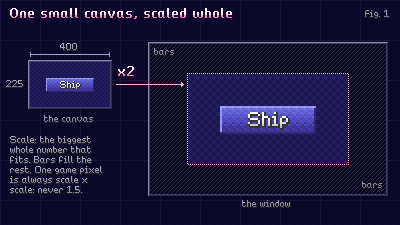
There are two rules that emerge as a consequence of this implementation:
- Every mouse position needs to go through
ToGamebefore anything else sees it. The whole UI only ever thinks in game pixels, so everything needs to be transformed to conform to that. - Nothing can ever move by fractions. If something moves, it must move by at least a whole pixel. You cannot scale by 1.5, you must ensure everything is moving and scaling and rotating in accordance with the pixel grid, or the whole aesthetic is broken, and things begin to look awful.
It's possible to do this kind of thing without a pixel art aesthetic. A larger reference resolution is doable. But to accomplish that, you'd really need to consider accommodating a downscaled UI, and not just an upscaled one. Having a concrete coordinate system embodied in a native resolution is a great advantage for authoring UI, and intuiting how everything fits together, but it's no silver bullet solution for every game.
Event-based communication#
This is the thing that really makes everything fit together, and is very important to get right.
This kind of pattern is not at all uncommon, and is useful for a lot more than just UI. Game Programming Patterns refers to it as the Observer pattern, Unreal Engine incorporates the pattern in its Delegates, and it's broadly just a useful thing to have around as a utility in your game, regardless of what you're doing. Being able to communicate from one place in your codebase to another, without the communicator necessarily knowing who they're talking to, is useful to have.
Anatomy of an event#
An event is actually just a string. It could be like "OnButtonDown", "OnMouseDown", "OnGameplayEventHappened", etc.
The magic is the listener table. You define an events object that contains a Lua table, in which the string indexes a list of listeners, each made of two pieces of information: an owner, and a function to call when the thing happens. Because of some Lua niceness, the owner is passed in as the function's first parameter, so when the function belongs to the owner, it acts just like a class method invocation.
	...
	Events:Bind("OnMouseDown", function(this, consumed, button, mouseX, mouseY)
		if consumed then return false end
		if aabb(mouseX, mouseY, 1, 1, this.x, this.y, this.w, this.h) then
			print("I got clicked!")
			return true
		end
		return false
	end, self)
	...
An example of setting up an event binding with an anonymous function
Using up the events#
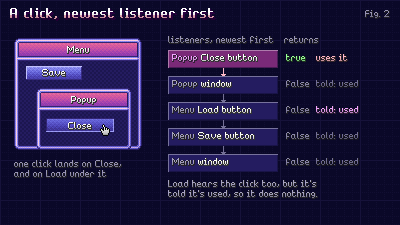
However, with UI, you will encounter a very annoying bug often when rolling your own if you're not careful. A popup spawns over a menu, and you click the button to close it. And oops! There's another button on the menu beneath the popup that is also listening for a "have I been clicked?" event, and it gets the same signal the popup button did. And now one click has clicked two buttons.
The fix is to let events be consumed by a listener, if the listener acted on it. "But Alex", I hear you say, "...how do we make sure the popup in this scenario gets the click and consumes it, and the menu doesn't get it first?"
The answer is to broadcast your event firing to listeners newest first, meaning that whatever was made last (in this case the window most recently opened, which would be the popup, and its components) gets the message first. Each listener is informed if an event has already been consumed, and will correspondingly do nothing. To inform the event emitter that the event has been consumed, the function bound to the listener simply returns true if it consumes, false if it doesn't.
Tip to avoid garbage collection hell#
Keep in mind that Lua is a garbage collected language. The listeners don't live inside the thing they're listening for (i.e. a listener awaiting a button being clicked is not living inside the button), they live in a central list for that event. That list holds on to the listener, and the listener holds on to its owner. So when a window closes and the rest of the game lets go of its buttons, the events table is still holding them: they're never collected, and when the event happens, a button that's gone from the screen can still get called, return true, and consume the click. Now a button nobody can see is blocking everything else, and everything grinds to a screeching halt.
The game handles this with a weak table. The listener lists are ordinary tables, but a listener doesn't hold its owner directly: one shared table maps listeners to owners, made weak with a metatable option (__mode = "kv") so its entries don't keep anything alive. Once nothing else holds the owner, the collector frees it, and the next time the event fires, the dispatcher drops the ownerless listener. (The game also sweeps a list whenever it doubles in size, for events that rarely fire.)
This approach isn't included in this post because it has complications of its own. Consider the above code snippet demonstrating the binding process. What if we did something like this?
function owner:SetupAwaitClick()
	self.isDown = false
	Events:Bind("OnMouseDown", function(this, consumed, button, mouseX, mouseY)
		if consumed then return false end
		if aabb(mouseX, mouseY, 1, 1, this.x, this.y, this.w, this.h) then
			self.isDown = true
			return true
		end
		return false
	end, self)
end
Perfectly innocent, right? Except the callback sets self.isDown, not this.isDown. That self belongs to SetupAwaitClick, so the callback captures it as an upvalue: the function now holds the owner. The events table holds the function, and the events table lives as long as the game does, so the owner can always be reached and the weak table never gets to let it go. Every button wired up like this lives forever, and keeps catching clicks.
So in the game, callbacks always use this, the owner passed in as the first argument, never self, and Bind raises an error if a callback captures its owner. That's a lot for an introductory post, so the code below keeps only the other half of what the game does: a listener goes quiet once its owner, or any window it sits in, is marked closed. Add the weak table once you've scaled up.
-- events.lua
local Events = {}
Events.__index = Events

function Events.new()
    return setmetatable({ listeners = {} }, Events)
end

-- a listener goes quiet the moment its owner (or the window it's in) is closed
local function isClosed(owner)
    while owner do
        if owner.closed then
            return true
        end
        owner = owner.parent
    end
    return false
end

-- func is called as func(owner, ...)
function Events:Bind(event, func, owner)
    self.listeners[event] = self.listeners[event] or {}
    table.insert(self.listeners[event], { func = func, owner = owner })
end

function Events:Broadcast(event, ...)
    local list = self.listeners[event] or {}
    for index = #list, 1, -1 do
        local listener = list[index]
        if isClosed(listener.owner) then
            table.remove(list, index)
        else
            listener.func(listener.owner, ...)
        end
    end
end

-- newest first. Each listener is told whether an earlier one already used
-- the event, and returns true if it used it itself
function Events:BroadcastWithConsume(event, ...)
    local list = self.listeners[event] or {}
    local consumed = false
    for index = #list, 1, -1 do
        local listener = list[index]
        if isClosed(listener.owner) then
            table.remove(list, index)
        else
            consumed = listener.func(listener.owner, consumed, ...) or consumed
        end
    end
    return consumed
end

return Events
A single source of input#
LÖVE's callbacks go straight into the events above, with mouse positions converted to game pixels. This is also where the game decides whether the player is in mouse or pad mode, from whichever was touched last: the cursor hides in pad mode, the button prompts change to match, and (as you'll see) the selection box appears.
To keep the sample short, the arrow keys, Enter and Escape act exactly like a pad's d-pad, A and B. In the game they're their own thing (keys can be rebound, Tab moves too), but they drive the same selection.
-- input.lua
local Events = require("events")
local Screen = require("screen")

local Input = { events = Events.new(), mode = "mouse" }

local KEY_TO_PAD = { up = "dpup", down = "dpdown", left = "dpleft", right = "dpright",
                     ["return"] = "a", space = "a", escape = "b" }

function Input:SetMode(mode)
    if mode ~= self.mode then
        self.mode = mode
        self.events:Broadcast("modeChanged", mode)
    end
end

function Input:Hook()
    function love.mousemoved(x, y)
        Input:SetMode("mouse")
        Input.events:Broadcast("mouseMoved", Screen:ToGame(x, y))
    end
    function love.mousepressed(x, y, button)
        Input:SetMode("mouse")
        local gameX, gameY = Screen:ToGame(x, y)
        Input.events:BroadcastWithConsume("mousePressed", gameX, gameY, button)
    end
    function love.mousereleased(x, y, button)
        local gameX, gameY = Screen:ToGame(x, y)
        Input.events:Broadcast("mouseReleased", gameX, gameY, button)
    end
    function love.gamepadpressed(joystick, button)
        Input:SetMode("pad")
        Input.events:BroadcastWithConsume("padPressed", button)
    end
    function love.gamepadreleased(joystick, button)
        Input.events:Broadcast("padReleased", button)
    end
    function love.keypressed(key, scancode, isRepeat)
        local button = KEY_TO_PAD[key]
        if button and not isRepeat then
            Input:SetMode("pad")
            Input.events:BroadcastWithConsume("padPressed", button)
        end
    end
    function love.keyreleased(key)
        local button = KEY_TO_PAD[key]
        if button then
            Input.events:Broadcast("padReleased", button)
        end
    end
    function love.resize(width, height)
        Screen:Resize(width, height)
    end
end

return Input
Presses go out with consume; moves and releases go to everyone. A release isn't something you claim: whatever was pressed needs to hear it come back up, wherever it is.
A stack of windows#
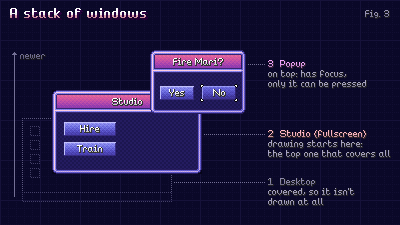
The screen is a stack. In the game, the desktop sits at the bottom and never leaves, and every window, popup and menu goes on top. The window on top has focus, which decides almost everything else: only its components can be selected, so only they can be pressed.
-- ui.lua (part 1)
local Input = require("input")
local Navigation = require("navigation")
local Sound = require("sound")

local UI = { stack = {}, selected = nil }

function UI:Load()
    Input.events:Bind("mouseMoved", self.OnMouseMoved, self)
    Input.events:Bind("padPressed", self.OnPadPressed, self)
    Input.events:Bind("padReleased", self.OnPadReleased, self)
    Input.events:Bind("modeChanged", self.OnModeChanged, self)
end

function UI:Focused()
    return self.stack[#self.stack]
end

function UI:Open(window)
    local below = self:Focused()
    if below then
        below.lastSelected = self.selected -- given back when it's on top again
    end
    self:Select(nil)
    table.insert(self.stack, window)
    window.openedAt = love.timer.getTime()
    self:Arrive()
end

function UI:Close(window)
    local wasOnTop = window == self:Focused()
    window.closed = true -- it and everything in it stop hearing input right now
    for index = #self.stack, 1, -1 do
        if self.stack[index] == window then
            table.remove(self.stack, index)
        end
    end
    if wasOnTop then
        self:Select(nil)
        self:Arrive()
    end
end

-- focus has landed on the top window: on a pad, give it back what it
-- had selected, or where it starts
function UI:Arrive()
    local window = self:Focused()
    if window and Input.mode == "pad" then
        local remembered = window.lastSelected
        if remembered and remembered.closed then
            remembered = nil
        end
        self:Select(remembered or window:InitialSelection())
    end
end
Remembering the selection is a small thing players notice: close a popup opened from the third button in a list, and the pad is back on the third button, not the first.
Drawing walks the stack too, starting from the topmost window that covers the whole screen, since nothing under it can be seen.
-- ui.lua (part 2)
function UI:Draw()
    local first = 1
    for index = #self.stack, 1, -1 do
        if self.stack[index].fullscreen then
            first = index
            break
        end
    end
    for index = first, #self.stack do
        self.stack[index]:Draw()
    end
    local focused = self:Focused()
    if Input.mode == "pad" and self.selected and not focused:IsOpening() then
        self:DrawSelection()
    else
        self.glide = nil -- nothing to glide from next time
    end
end
DrawSelection comes later, under feel.
One selection#
This is the idea I'm proudest of, and the one that made controller support nearly free.
Every control in the game works with a mouse, a keyboard, a gamepad and a finger, without a code path for each. They all drive one thing: what's selected, and a press from any device acts on the selected component, and only on it.
- The mouse selects whatever's under the cursor in the focused window.
- The pad and arrow keys move the selection in the direction pressed (next section).
- A finger selects what it lands on, and the tap that follows acts like a click.
-- ui.lua (part 3)
function UI:Select(component)
    if component == self.selected then
        return
    end
    if self.selected then
        self.selected.isSelected = false
        self.selected:OnDeselect()
    end
    self.selected = component
    if component then
        component.isSelected = true
        component:OnSelect()
    end
end

function UI:OnModeChanged(mode)
    if mode == "pad" and not self.selected then
        self:Arrive()
    end
end

-- the topmost thing under the mouse, in the focused window only
function UI:OnMouseMoved(x, y)
    local window = self:Focused()
    if not window then
        return
    end
    local hit = nil
    for _, component in ipairs(window:Selectables()) do
        if component:Contains(x, y) then
            hit = component -- drawn later means on top, so the last hit wins
        end
    end
    self:Select(hit)
end
Here's the button's side. It never asks "is the mouse over me?", only "am I selected?", so the same code handles a click and a press of A:
-- button.lua (pressing)
local Input = require("input")
local Sound = require("sound")

local Button = {}
Button.__index = Button

function Button.new(x, y, width, height, label, onPress)
    local button = setmetatable({ x = x, y = y, width = width, height = height,
                                  label = label, onPress = onPress, active = true }, Button)
    Input.events:Bind("mousePressed", Button.OnMousePressed, button)
    Input.events:Bind("mouseReleased", Button.OnMouseReleased, button)
    Input.events:Bind("padPressed", Button.OnPadPressed, button)
    Input.events:Bind("padReleased", Button.OnPadReleased, button)
    return button
end

function Button:Contains(x, y)
    return x >= self.x and x < self.x + self.width and y >= self.y and y < self.y + self.height
end

function Button:OnMousePressed(consumed, x, y, mouseButton)
    if consumed or mouseButton ~= 1 or not self.isSelected then
        return false
    end
    return self:Down()
end

function Button:OnPadPressed(consumed, padButton)
    if consumed or padButton ~= "a" or not self.isSelected then
        return false
    end
    return self:Down()
end

function Button:Down()
    if self.confirmingSince then
        return true -- swallowed while it pulses, so it can't fire twice
    end
    if not self.active then
        self.nopeAt = love.timer.getTime()
        Sound:Play(-12, 0.4)
        return true
    end
    self.isDown = true
    return true
end

function Button:OnMouseReleased(x, y, mouseButton)
    if mouseButton == 1 then
        self:Up()
    end
end

function Button:OnPadReleased(padButton)
    if padButton == "a" then
        self:Up()
    end
end

-- a press only counts if it comes back up on the button
function Button:Up()
    if not self.isDown then
        return
    end
    self.isDown = false
    if self.isSelected then
        self.confirmingSince = love.timer.getTime()
        Sound:Play(7, 0.5)
    end
end

function Button:OnDeselect()
    self.isDown = false -- slid off before letting go: that press doesn't count
end
Acting on the release rather than the press fixes a whole family of bugs at once:
- Slide off to cancel. Press, change your mind, drag off and let go: nothing happens, like any desktop UI.
- The opening click. A click on "Open" opens a window, and the release of that same click lands on whatever's under the cursor in it. That button never saw the press go down, so nothing happens.
- Double presses. Some setups deliver one physical press twice (a pad that also showed up as Steam's virtual controller did this to me). A toggle that acted on the press would open and instantly close. The game also makes toggles wait for A to be let go before they listen again.
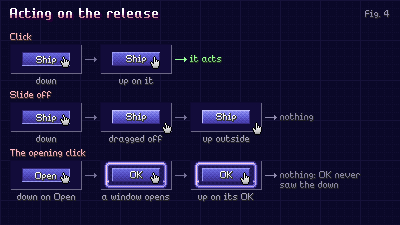
The last rule keeps everything honest: only what's added to a window can be selected, so anything not added can't be reached with a pad. That makes every new screen playable with a controller from day one, instead of controller support being bolted on at the end. In the game, even a bit of information with a tooltip is wrapped in a small selectable "info zone", purely so a pad can reach it.
Moving with a pad#
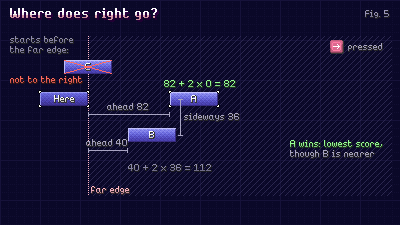
When the player is using a controller or a keyboard, selection becomes a lot harder. How do you know where to go? How do you know where to begin? How do you move the selection from one component to the other? Selection with a pad makes use of three rules:
- Snap the press to its stronger axis. A stick pushed mostly right is a press right.
- Only consider things whose near edge is past your far edge in that direction. Overlapping things in a row don't count as "to the right".
- Of those, pick the lowest distance ahead + 2 × distance sideways, measured between centers. The doubling means something a little further away but in line beats something closer that's off to the side, which is almost always what a player means.
-- navigation.lua
local Navigation = {}

local SIDEWAYS_WEIGHT = 2

function Navigation.Pick(from, candidates, dx, dy)
    local fromX, fromY = from.x + from.width / 2, from.y + from.height / 2
    local edgeX, edgeY = fromX + dx * from.width / 2, fromY + dy * from.height / 2
    local best, bestScore = nil, math.huge
    for _, candidate in ipairs(candidates) do
        if candidate ~= from then
            local centerX = candidate.x + candidate.width / 2
            local centerY = candidate.y + candidate.height / 2
            local ahead, sideways
            if dx ~= 0 then
                ahead = (centerX - dx * candidate.width / 2 - edgeX) * dx
                sideways = math.abs(centerY - fromY)
            else
                ahead = (centerY - dy * candidate.height / 2 - edgeY) * dy
                sideways = math.abs(centerX - fromX)
            end
            if ahead >= 0 then
                local score = ahead + sideways * SIDEWAYS_WEIGHT
                if score < bestScore then
                    best, bestScore = candidate, score
                end
            end
        end
    end
    return best
end

return Navigation
There are two backup escape hatches in place to cover the cases the rule gets wrong:
- Pinned neighbors. A component can say exactly where a direction goes. A left/right picker with a very wide value in the middle uses this so its two arrows always reach each other.
- Stay in your list. Up and down inside a scrolling list stay in that list while it has anything that way, even if a button outside it is technically nearer. (The game learned this when pressing down in one list kept landing on a different list beside it.)
Holding a direction repeats, and repeats faster the longer you hold, so a long list doesn't crawl. Pushing past the last thing in a direction bumps, which you'll see under feel.
-- ui.lua (part 4)
local DIRECTIONS = { dpup = { 0, -1 }, dpdown = { 0, 1 },
                     dpleft = { -1, 0 }, dpright = { 1, 0 } }
local FIRST_REPEAT = 0.35

function UI:OnPadPressed(consumed, button)
    local direction = DIRECTIONS[button]
    if consumed or not direction then
        return false
    end
    self:Move(direction[1], direction[2])
    self.held = { button = button, dx = direction[1], dy = direction[2], repeats = 0,
                  nextAt = love.timer.getTime() + FIRST_REPEAT }
    return true
end

function UI:OnPadReleased(button)
    if self.held and self.held.button == button then
        self.held = nil
    end
end

local function repeatDelay(repeats)
    if repeats >= 14 then
        return 0.07
    elseif repeats >= 6 then
        return 0.12
    end
    return 0.2
end

function UI:Move(dx, dy)
    local window = self:Focused()
    if not window then
        return
    end
    if not self.selected then
        self:Select(window:InitialSelection())
        return
    end
    local pinned = self.selected.neighbors and self.selected.neighbors[dx .. "," .. dy]
    local target = pinned or Navigation.Pick(self.selected, window:Selectables(), dx, dy)
    if target then
        self:Select(target)
        Sound:Move(target)
    else
        self.bump = { dx = dx, dy = dy, startedAt = love.timer.getTime() }
        Sound:Play(-5, 0.3)
    end
end

function UI:Update(dt)
    local held = self.held
    if held and love.timer.getTime() >= held.nextAt then
        held.repeats = held.repeats + 1
        held.nextAt = love.timer.getTime() + repeatDelay(held.repeats)
        self:Move(held.dx, held.dy)
    end
    for _, window in ipairs(self.stack) do
        window:Update(dt)
    end
end
A window can also take a direction for itself before navigation sees it. The awards screen pages left and right with the d-pad this way, and it still gets the same hold-to-repeat timing.
Windows#
A window is fundamentally just a box with child components. Adding a child component is what makes it selectable. B (or Escape) backs out of the window on top. Clicking outside closes it too, but only when both the press and the release are outside. A drag that starts on a scrollbar inside and ends outside doesn't count, and neither does the release of the click that opened the window.
-- window.lua (behavior)
local Input = require("input")
local UI = require("ui")

local Window = {}
Window.__index = Window

function Window.new(x, y, width, height, title)
    local window = setmetatable({ x = x, y = y, width = width, height = height,
                                  title = title, children = {}, closable = true }, Window)
    Input.events:Bind("padPressed", Window.OnPadPressed, window)
    Input.events:Bind("mousePressed", Window.OnMousePressed, window)
    Input.events:Bind("mouseReleased", Window.OnMouseReleased, window)
    return window
end

function Window:Add(component)
    component.parent = self
    table.insert(self.children, component)
    return component
end

-- only what's added here can be selected
function Window:Selectables()
    local list = {}
    for _, child in ipairs(self.children) do
        if child.selectable ~= false then
            table.insert(list, child)
        end
    end
    return list
end

function Window:InitialSelection()
    return self:Selectables()[1]
end

function Window:Contains(x, y)
    return x >= self.x and x < self.x + self.width and y >= self.y and y < self.y + self.height
end

function Window:OnPadPressed(consumed, button)
    if consumed or button ~= "b" or not self.closable or UI:Focused() ~= self then
        return false
    end
    UI:Close(self)
    return true
end

function Window:OnMousePressed(consumed, x, y, button)
    self.pressedOutside = not consumed and button == 1 and self.closable
        and UI:Focused() == self and not self:Contains(x, y)
    return false
end

function Window:OnMouseReleased(x, y, button)
    if button == 1 and self.pressedOutside and UI:Focused() == self
            and not self:Contains(x, y) then
        UI:Close(self)
    end
    self.pressedOutside = false
end

function Window:Update(dt)
    for _, child in ipairs(self.children) do
        child:Update(dt)
    end
end
In the game, a child can also be added with conditions: only shown on one tab, selectable only with a mouse (a tab strip, since a pad flips tabs with the shoulder buttons), or "select the parts, not the whole" for compound controls like a picker with two arrows. A scrolling list is added once, and its visible rows become selectable after it. That's how one Selectables() list covers every kind of screen.
Making it feel good to press#
Vaporware is all UI, so if the UI doesn't feel good, the game doesn't feel good, and if the game doesn't feel good, I don't feel good. So, a lot of time and attention was put into the little polishes and tweaks that can make things feel a bit more alive, responsive, interesting, and without undue repetition.
Hover hop#
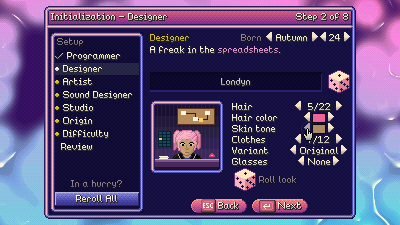
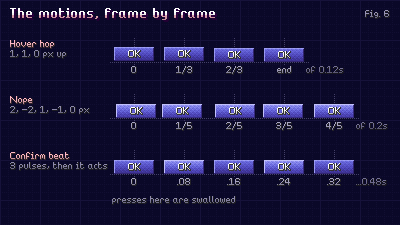
Anything you can press pops up one pixel when it's selected, then settles. It's a subtle way to tell you what's interactive. If you hover it, and it does a lil hop, you know something will happen when you click. If you click, and it says no, it does a little sideways shake to nod no at you.
-- button.lua (motion)
local HOP_PIXELS, HOP_TIME = { 1, 1, 0 }, 0.12          -- by thirds of the time
local NOPE_PIXELS, NOPE_TIME = { 2, -2, 1, -1, 0 }, 0.2 -- by fifths

-- whole-pixel frames, picked by how far through the motion we are
local function step(frames, startedAt, duration)
    if not startedAt then
        return 0
    end
    local progress = (love.timer.getTime() - startedAt) / duration
    if progress >= 1 then
        return 0
    end
    return frames[math.floor(progress * #frames) + 1]
end

function Button:OnSelect()
    self.selectedAt = love.timer.getTime()
    if Input.mode == "mouse" then
        Sound:Move(self) -- the pad's moves make their sound in UI:Move
    end
end
The motion is a list of whole-pixel frames rather than an eased curve, for the reason in the first section: eased motion lands between pixels.
Pitched moves#
Every move makes a soft tap, and the tap is higher further down and further right. Running down a list climbs, coming back falls, and you can hear where you are without looking. Moves are never closer together than a few hundredths of a second, so a fast flick isn't a buzz. The sample code provides you a basic blip sound so there are no assets required for this part.
-- sound.lua
local Sound = {}

local MOVE_GAP = 0.03

function Sound:Load()
    local rate, seconds = 44100, 0.04
    local samples = math.floor(rate * seconds)
    local data = love.sound.newSoundData(samples, rate, 16, 1)
    for index = 0, samples - 1 do
        local wave = math.sin(index / rate * 880 * 2 * math.pi) > 0 and 0.15 or -0.15
        data:setSample(index, wave * (1 - index / samples))
    end
    self.blip = love.audio.newSource(data)
    self.lastMoveAt = 0
end

function Sound:Play(semitones, volume)
    local source = self.blip:clone()
    source:setPitch(2 ^ (semitones / 12))
    source:setVolume(volume or 1)
    source:play()
end

function Sound:Move(component)
    local now = love.timer.getTime()
    if now - self.lastMoveAt < MOVE_GAP then
        return
    end
    self.lastMoveAt = now
    self:Play(component.y / 225 * 7 + component.x / 400 * 5, 0.5)
end

return Sound
The confirm beat#
When you make a choice or decision, the button freezes and blinks at you a few times before it proceeds. Originally, I went with a freeze-frame hit-stop, but because the widget often dies with the decision, it would just get skipped in the widget death. Seeing the press land for half a second before anything changes is good feedback, and any presses that happen during that beat are simply swallowed to form a debounce. Consequential things get an extra pulse to give some extra weight to the interaction.
-- button.lua (the beat)
local PULSE_TIME, PULSES = 0.16, 3

function Button:Update(dt)
    if self.confirmingSince
            and love.timer.getTime() - self.confirmingSince >= PULSE_TIME * PULSES then
        self.confirmingSince = nil
        self.onPress(self)
    end
end

function Button:Draw()
    local hop = self.isSelected and step(HOP_PIXELS, self.selectedAt, HOP_TIME) or 0
    local shake = step(NOPE_PIXELS, self.nopeAt, NOPE_TIME)
    local x, y = self.x + shake, self.y - hop + (self.isDown and 1 or 0)

    local lit = self.isSelected
    if self.confirmingSince then
        local elapsed = love.timer.getTime() - self.confirmingSince
        lit = math.floor(elapsed / PULSE_TIME * 2) % 2 == 0
    end
    if not self.active then
        love.graphics.setColor(0.3, 0.25, 0.35, 1)
    elseif lit then
        love.graphics.setColor(0.94, 0.55, 0.73, 1)
    else
        love.graphics.setColor(0.88, 0.4, 0.62, 1)
    end
    love.graphics.rectangle("fill", x, y, self.width, self.height)
    love.graphics.setColor(1, 1, 1, 1)
    love.graphics.printf(self.label, x, y + math.floor((self.height - 14) / 2), self.width, "center")
end

return Button
Selection glide and edge bump#
When moving with a pad, you haven't got the cursor on screen to indicate where you're at, so a box is drawn around elements instead. Instead of hard-snapping from component to component, it's eased to the next thing to give you the ability to follow its motion. It takes around a tenth of a second, not enough to read as input lag, but enough to feel like you can track the change of selection in a deeper way. This doesn't apply when changing window though, because gliding from a now-unseen button would feel off, and when it's close enough, it snaps, so that it doesn't feel like it's trailing a scrolling list.
If there's nowhere to go in a particular direction, the box nudges towards that direction and then comes back. Your input is acknowledged, even if it can't be consequential.
-- ui.lua (part 5)
local GLIDE_RATE = 30
local BUMP_TIME, BUMP_PIXELS = 0.15, 2

function UI:BumpOffset()
    local bump = self.bump
    if not bump then
        return 0, 0
    end
    local progress = (love.timer.getTime() - bump.startedAt) / BUMP_TIME
    if progress >= 1 then
        self.bump = nil
        return 0, 0
    end
    local amount = math.floor(math.sin(progress * math.pi) * BUMP_PIXELS + 0.5)
    return bump.dx * amount, bump.dy * amount
end

function UI:DrawSelection()
    local target = self.selected
    local glide = self.glide
    if not glide or glide.window ~= target.parent then
        glide = { x = target.x, y = target.y, width = target.width,
                  height = target.height, window = target.parent }
        self.glide = glide
    end
    -- frame-rate independent easing: the same feel at 30 fps and 144
    local blend = 1 - math.exp(-GLIDE_RATE * love.timer.getDelta())
    for _, key in ipairs({ "x", "y", "width", "height" }) do
        glide[key] = glide[key] + (target[key] - glide[key]) * blend
    end
    local bumpX, bumpY = self:BumpOffset()
    local left = math.floor(glide.x + 0.5) - 2 + bumpX
    local top = math.floor(glide.y + 0.5) - 2 + bumpY
    local width = math.floor(glide.width + 0.5) + 4
    local height = math.floor(glide.height + 0.5) + 4
    love.graphics.setColor(1, 0.85, 0.35, 1)
    love.graphics.rectangle("line", left + 0.5, top + 0.5, width - 1, height - 1)
end

return UI
The glide works out its position in fractions, then rounds when it draws: the motion is smooth, and the box is still always on whole pixels. (This sample's version eases forever toward its target, which is fine for a box that doesn't move. The game snaps it once it's within half a pixel, then follows its target exactly from then on.)
Windows that turn on and off like a TV#
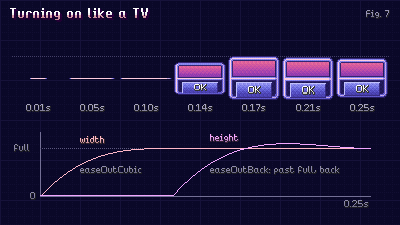
Lots of indie games like to use CRT effect shaders. For Vaporware, I wanted to go even further and make windows open in the way that old CRT TVs would turn on: a thin line opening up with a little overshoot. Closing a window then squashes it back down to a line, and then shrinks that line down to a little dot. It's just a shame I couldn't make it so you could stick a piece of paper to your monitor as well.
In addition, if you're opening a window from the hotbar in the game's desktop screen, it expands out of the button, and shrinks back into it when it closes, Windows 95 style.
-- window.lua (drawing)
local OPEN_TIME = 0.25

local function easeOutCubic(t)
    return 1 - (1 - t) ^ 3
end

local function easeOutBack(t)
    local overshoot = 1.70158
    return 1 + (overshoot + 1) * (t - 1) ^ 3 + overshoot * (t - 1) ^ 2
end

-- a thin line stretches out, then opens up
local function openScale(progress)
    if progress < 0.4 then
        return math.max(easeOutCubic(progress / 0.4), 0.02), 0.03
    end
    return 1, math.max(easeOutBack((progress - 0.4) / 0.6), 0.03)
end

function Window:IsOpening()
    return love.timer.getTime() - (self.openedAt or 0) < OPEN_TIME
end

function Window:Draw()
    love.graphics.setColor(0, 0, 0, 0.5) -- dim what's underneath
    love.graphics.rectangle("fill", 0, 0, 400, 225)

    local scaleX, scaleY = 1, 1
    local progress = (love.timer.getTime() - (self.openedAt or 0)) / OPEN_TIME
    if progress < 1 then
        scaleX, scaleY = openScale(progress)
    end
    local centerX, centerY = self.x + self.width / 2, self.y + self.height / 2
    love.graphics.push()
    love.graphics.translate(centerX, centerY)
    love.graphics.scale(scaleX, scaleY)
    love.graphics.translate(-centerX, -centerY)

    love.graphics.setColor(0.17, 0.09, 0.22, 1)
    love.graphics.rectangle("fill", self.x, self.y, self.width, self.height)
    love.graphics.setColor(0.35, 0.25, 0.47, 1)
    love.graphics.rectangle("line", self.x + 0.5, self.y + 0.5, self.width - 1, self.height - 1)
    love.graphics.setColor(1, 1, 1, 1)
    love.graphics.print(self.title, self.x + 8, self.y + 6)
    for _, child in ipairs(self.children) do
        child:Draw()
    end
    love.graphics.pop()
end

return Window
This is the one place the game scales by fractions, and it gets away with it because it's over in a quarter of a second. To animate the close, a closed window has to keep being drawn after it's left the stack: the game keeps a short list of windows that are powering off and draws them on top until they finish. They're already marked closed, so they don't hear input.
Text that talks#
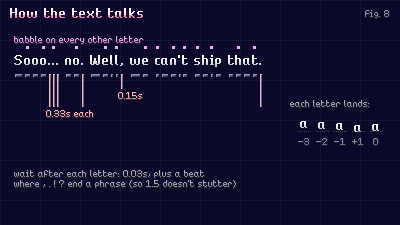
The game has a lot of text. A LOT of text. I didn't want the text to be static, so I've invested a lot of time into text-based effects that make it possible to introduce text in different and unique ways. There are three principles underpinning this:
- Pacing. A beat after a comma, a longer one after a full stop, one per dot of an ellipsis. But only where the punctuation ends a phrase, so "1.5" and "v2.0" don't stutter.
- Every letter pops in. It drops a few pixels into place and lands a pixel low, in whole pixels. This means it feels like there's some effort behind every letter coming into place, in the way producing speech to talk takes effort.
- A babble. Whoever's talking makes little blippy vowel sounds on every other letter. I chose every other letter, because doing it on every letter just made it sound like a spammy machine gun.
-- typewriter.lua
local Sound = require("sound")

local Typewriter = {}
Typewriter.__index = Typewriter

local LETTER_TIME = 0.03
local PAUSES = { [","] = 0.12, ["."] = 0.3, ["!"] = 0.3, ["?"] = 0.3 }
local DROP_PIXELS, DROP_TIME = { -3, -2, -1, 1, 0 }, 0.1

function Typewriter.new(text)
    return setmetatable({ text = text, shown = 0, wait = 0, revealedAt = {} }, Typewriter)
end

-- only where punctuation ends a phrase; each dot of an ellipsis gets its own
local function pauseAfter(letter, nextLetter)
    local pause = PAUSES[letter]
    if pause and (nextLetter == " " or nextLetter == "" or nextLetter == letter) then
        return pause
    end
    return 0
end

function Typewriter:IsDone()
    return self.shown >= #self.text
end

function Typewriter:Update(dt, speed)
    self.wait = self.wait - dt * (speed or 1)
    while self.wait <= 0 and not self:IsDone() do
        self.shown = self.shown + 1
        self.revealedAt[self.shown] = love.timer.getTime()
        local letter = self.text:sub(self.shown, self.shown)
        local nextLetter = self.text:sub(self.shown + 1, self.shown + 1)
        self.wait = self.wait + LETTER_TIME + pauseAfter(letter, nextLetter)
        if self.shown % 2 == 0 and letter ~= " " then
            Sound:Play(math.random(0, 2), 0.2)
        end
    end
end

function Typewriter:Draw(x, y)
    local font = love.graphics.getFont()
    local now = love.timer.getTime()
    for index = 1, self.shown do
        local letter = self.text:sub(index, index)
        local progress = (now - self.revealedAt[index]) / DROP_TIME
        local drop = progress < 1 and DROP_PIXELS[math.floor(progress * #DROP_PIXELS) + 1] or 0
        love.graphics.print(letter, x, y + drop)
        x = x + font:getWidth(letter)
    end
end

return Typewriter
This sample walks the text byte by byte, which is fine for plain English. For anything else, step through it with LÖVE's utf8 module instead.
Things the game's typewriter adds on top, if you want to go further:
- Wrap the whole line first. Work out the line breaks for the finished text before you start typing. Otherwise a long word starts at the end of a line and then jumps to the next one halfway through being typed.
- Fast-forward on hold. Holding the button speeds the text up and increases the pitch of the babbling slightly. Letting go of the hold isn't considered a press by the input and events, so it won't skip stuff.
- Markup in the text itself, to make it easier to author content and associate effects with content. Parse it once into the plain text plus a list of spans (start, end, effect), all counted in the plain text's letters, and cache the result:
Sooo... <fx:speed=0.5>no.</fx> <fx:face=worried>We can't ship that.Wave, shake, jump and rainbow spans move or color their letters, pause and speed change the timing, and face changes the speaker's expression when the typing reaches it. Vaporware does include a Reduced Motion accessibility setting, which kills the motion, but keeps the color.
Putting it together#
-- main.lua
local Screen = require("screen")
local Input = require("input")
local Sound = require("sound")
local UI = require("ui")
local Window = require("window")
local Button = require("button")
local Typewriter = require("typewriter")

local Demo = {}

function Demo:OpenQuestion()
    local question = Window.new(110, 70, 180, 90, "Ship it?")
    question:Add(Button.new(125, 120, 70, 20, "Yes", function()
        UI:Close(question)
        self.line = Typewriter.new("Shipped... Reviews are in, and they're good.")
    end))
    question:Add(Button.new(205, 120, 70, 20, "Not yet", function()
        UI:Close(question)
    end))
    UI:Open(question)
end

function love.load()
    love.window.setMode(1200, 675, { resizable = true })
    Screen:Load()
    Sound:Load()
    Input:Hook()
    UI:Load()

    local desk = Window.new(0, 0, 400, 225, "The desk")
    desk.closable = false
    desk:Add(Button.new(20, 40, 100, 20, "Ship the game", function() Demo:OpenQuestion() end))
    desk:Add(Button.new(20, 70, 100, 20, "Fix bugs", function() end))
    local locked = desk:Add(Button.new(140, 40, 100, 20, "Locked", function() end))
    locked.active = false
    UI:Open(desk)
    Demo.line = Typewriter.new("It's 199X. Pick something to do.")
end

function love.update(dt)
    UI:Update(dt)
    if Demo.line then
        Demo.line:Update(dt)
    end
end

function love.draw()
    Screen:Begin()
    UI:Draw()
    if Demo.line then
        love.graphics.setColor(1, 1, 1, 1)
        Demo.line:Draw(20, 190)
    end
    Screen:Finish()
end
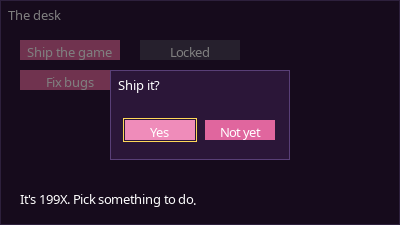
Each file's parts go together in the order they appear above. Run it, move the mouse over the buttons, then pick up a pad or press an arrow key, and the same buttons answer both.
Growing it into a real game's UI#
All the UI is built on these principal pieces outlined in this post, it's just more of it:
- New components are new kinds of child, each with
Contains,OnSelect,OnDeselect,UpdateandDraw. A slider is a button that also hears left and right while it's selected. A picker is two arrow buttons and a value. A text box is a button that takes the keyboard while it's open. - Scrolling lists clip their contents with a stencil or scissor, and add only the visible rows to
Selectables(). When the pad moves past the last visible row, scroll first, then select. - Tooltips follow the mouse, or sit beside the selection on a pad. Everything with a tooltip is selectable, which is why the info zones exist.
- Button prompts read the input mode, so the same prompt shows Enter on a keyboard and A on a pad, and switches the moment the player does.
- Touch is a pointer that selects the pad's way. A tap only counts if it's lifted over what it went down on and wasn't a drag, and holding instead of tapping shows a tooltip.
- Screen transitions freeze the old frame first, then swap the scene underneath while the screen is covered.
The mistakes that cost me the most time#
- Closed windows that still listen. Mark a window closed the moment it closes, and have every listener check. Don't wait for the garbage collector.
- Acting on the down. Act on the release, and only if the press started on the same thing. It fixes click-through, slide-off and double presses at once.
- Controller support at the end. If selection is the only way to press anything, the pad works from day one.
- Selection jumping between windows. Give each window its own selection, remember it when another opens on top, and give it back when it's on top again.
- Fractional pixels. If operating on a low resolution, do not let fractional pixels determine how things are positioned or sized, unless it's so fleeting that the eye won't catch it (like for certain kinds of VFX).
- Optimizing for feel later. The hop, the tap, the beat and the glide are each a few lines. Add them early, and every screen you make afterward gets them for free.
That's it! That's the whole design. You're welcome to take this and use it for whatever you make, whether with LÖVE, or not. If you have any issues with this, I'd love to hear from you and help out where possible.
The whole sample#
All 10 files from this post, put together: about 790 lines of plain Lua for LÖVE 11.5.
Run it as it is with love ui-sample.zip, or unzip it and run love . in the folder.